How to Create and Validate Your Podcast RSS Feed in 2025
According to Apple Podcasts validation documentation, the most common reason podcasts get rejected is RSS feed errors. Missing tags, improper character encoding, invalid date formats. These technical issues prevent thousands of podcasters from reaching listeners on Apple Podcasts and Spotify every month.
The frustrating part? Most RSS problems are easy to fix once you understand what’s wrong. But podcast directories don’t always give clear error messages. You submit your feed, wait days for review, and get a cryptic rejection notice that sends you searching forums for answers.
This guide breaks down everything you need to know about podcast RSS feeds in 2025. You’ll learn what RSS actually is, which tags Apple and Spotify require, how to validate your feed before submission, and how to fix the most common errors. Whether you’re launching a new podcast or troubleshooting distribution issues, you’ll have a clear path forward.
Quick Takeaways:
- RSS feeds are XML files that tell podcast directories about your show and episodes
- Apple Podcasts requires specific iTunes namespace tags that standard RSS doesn’t include
- Validation before submission prevents rejection delays and frustration
- Character encoding errors (especially ampersands) cause the most feed failures
- Never change episode GUIDs after publishing, or you’ll create duplicate episodes
What Is a Podcast RSS Feed? (And Why Does It Matter?)
RSS stands for Really Simple Syndication. Think of it like a newspaper subscription for the internet age. When you subscribe to a newspaper, new editions arrive at your door automatically. RSS works the same way for digital content.
RSS Explained Simply
Your podcast RSS feed is an XML file that contains all the information about your show. The podcast name, description, artwork, and every episode with its audio file location. When you publish a new episode, your RSS feed updates automatically. Podcast directories like Apple Podcasts and Spotify check this feed regularly and pull in the new content.
The beauty of RSS is that it’s an open standard defined by the RSS 2.0 specification. No single company controls it. This means your podcast isn’t locked into any particular platform. As long as you have access to your RSS feed URL, you can distribute your show anywhere.
How Podcasts Use RSS for Distribution
Here’s how the distribution flow works:
- You upload an episode to your hosting platform
- Your hosting platform updates your RSS feed with the new episode data
- Apple Podcasts, Spotify, and other directories check your feed (usually every few hours)
- They find the new episode and add it to their apps
- Subscribers get notified and can listen
This happens automatically once you’ve submitted your RSS feed URL to each directory. You don’t need to manually upload to Apple, then Spotify, then Google. One feed serves them all.
Why RSS Equals Podcast Independence
Your RSS feed is the one thing that truly belongs to you in podcasting. Hosting platforms come and go. Distribution channels change their policies. But your RSS feed URL is portable.
If you ever want to switch hosting platforms, you redirect your RSS feed to the new location. Your subscribers don’t need to do anything. Their podcast apps simply start pulling episodes from the new host. This is why understanding RSS matters even if your hosting platform handles everything automatically. Your podcast analytics depend on accurate RSS data, and your distribution depends on a valid feed.
Quick Takeaway: RSS is the universal language that connects your podcast to every directory. Master it, and you control your distribution.
What Tags Are Required for Apple Podcasts and Spotify?
The RSS 2.0 specification defines the basic structure, but podcasts need additional tags from the iTunes namespace. Apple Podcasts created these extensions years ago, and they’ve become the industry standard. Spotify and other directories expect them too.
Core RSS 2.0 Elements Every Podcast Needs
Every RSS feed starts with these basic elements:
| Element | Description | Required? |
|---|---|---|
<title> | Your podcast name | Yes |
<link> | URL to your podcast website | Yes |
<description> | What your podcast is about | Yes |
<language> | Language code (e.g., en-us) | Yes |
<item> | Container for each episode | Yes (at least one) |
These come from the standard RSS specification. But Apple Podcasts requires more.
iTunes Namespace Tags (Channel-Level)
To use iTunes tags, your RSS feed must declare the namespace at the top:
<rss version="2.0" xmlns:itunes="http://www.itunes.com/dtds/podcast-1.0.dtd">Then you can use these channel-level tags that apply to your entire podcast:
| Tag | Description | Required? |
|---|---|---|
<itunes:image> | Podcast artwork URL | Yes |
<itunes:category> | Primary category | Yes |
<itunes:explicit> | true or false | Yes |
<itunes:author> | Podcast creator name | Recommended |
<itunes:owner> | Contact email for directory | Recommended |
According to Apple Podcasts technical requirements, your artwork must be between 1400x1400 and 3000x3000 pixels, in JPEG or PNG format, at 72 dpi in RGB colorspace.
Episode-Level Tags (Per Episode)
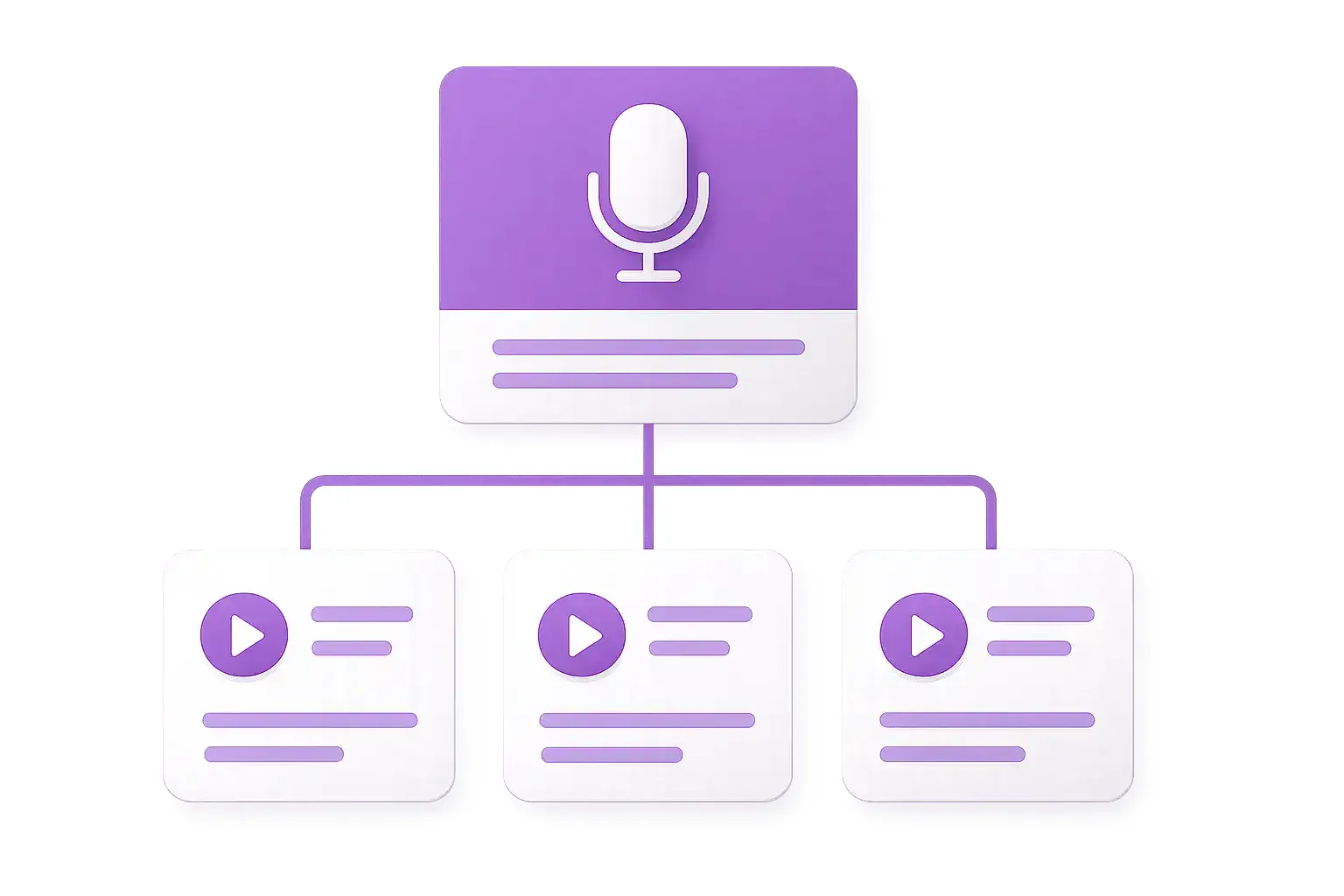
Each episode lives inside an <item> element with these tags:
| Tag | Description | Required? |
|---|---|---|
<title> | Episode title | Yes |
<enclosure> | Audio file URL, size, and type | Yes |
<guid> | Unique identifier (never change this) | Yes |
<pubDate> | Publication date in RFC 2822 format | Yes |
<description> | Episode description | Recommended |
<itunes:duration> | Episode length | Recommended |
<itunes:episode> | Episode number | Optional |
<itunes:season> | Season number | Optional |
The <enclosure> tag is particularly important. It tells podcast apps where to find your audio file:
<enclosure url="https://yourhost.com/episode1.mp3"
           length="12345678"
           type="audio/mpeg"/>
The length attribute should be the file size in bytes. The type attribute should match your audio format (audio/mpeg for MP3, audio/x-m4a for M4A).
Artwork Requirements
Apple Podcasts is strict about artwork specifications:
- Size: Minimum 1400x1400 pixels, maximum 3000x3000 pixels
- Format: JPEG or PNG only
- Resolution: 72 dpi
- Color space: RGB (not CMYK)
- File name: ASCII characters only (a-z, A-Z, 0-9)
If your artwork doesn’t meet these requirements, your podcast will be rejected. This is one of the most common submission failures.
How Do You Create a Podcast RSS Feed?
You have two options for creating your RSS feed: manual creation or automatic generation through a hosting platform. For most podcasters, automatic generation is the right choice. But understanding the manual process helps when troubleshooting issues.
Manual Creation (When and Why)
Manually creating an RSS feed means writing XML code yourself. You’d create a text file with all the required elements, upload it to a web server, and update it every time you publish an episode.
This approach makes sense in specific situations:
- You’re a developer building a custom podcast system
- You need complete control over every tag and attribute
- You’re hosting on your own infrastructure without a podcast platform
For everyone else, manual creation is unnecessary complexity. One typo in your XML breaks the entire feed. Missing a required tag gets you rejected. And you’d need to update the feed manually for every new episode.
Automatic Generation Through Hosting Platforms
Modern podcast hosting platforms generate your RSS feed automatically. You fill out forms for your podcast details, upload episodes through a dashboard, and the platform creates a valid RSS feed for you.
This is how it works at VNYL and most hosting platforms:
- You enter podcast metadata (title, description, category, artwork)
- You upload your first episode with its details
- The platform generates a valid RSS feed URL
- You submit that URL to Apple Podcasts and Spotify
- Every future episode automatically appears in your feed
The platform handles the XML structure, character encoding, date formatting, and namespace declarations. You focus on creating content. Compare hosting platform RSS features to see how different services handle feed generation.
When Manual Control Actually Matters
Even with automatic generation, sometimes you need to adjust specific tags. Good hosting platforms let you:
- Edit the raw RSS feed for custom tags
- Add podcast namespace extensions (like
<podcast:transcript>) - Control which episodes appear in the feed
- Set custom GUIDs or publication dates
If your hosting platform doesn’t offer this flexibility, you’re limited to whatever they generate. This becomes important when you want advanced features like transcript links, funding tags, or specific distribution settings.
Quick Takeaway: Use automatic RSS generation unless you have specific technical requirements. But choose a platform that gives you access to customize when needed.
How to Validate Your RSS Feed Before Submission
Submitting an invalid RSS feed to Apple Podcasts means waiting days for a rejection, fixing the problem, and waiting again. Validation catches errors before submission, saving you time and frustration.
Why Validation Matters
Apple Podcasts reviews every new podcast submission. If your RSS feed has errors, they reject it without much explanation. The review process can take several days each time. Multiple rejections mean weeks of delays before your podcast goes live.
Validation tools check your feed against the RSS specification and Apple’s requirements. They identify missing tags, formatting errors, and encoding problems before you submit. Five minutes of validation prevents days of back-and-forth.
Using VNYL’s Free RSS Validator Tool
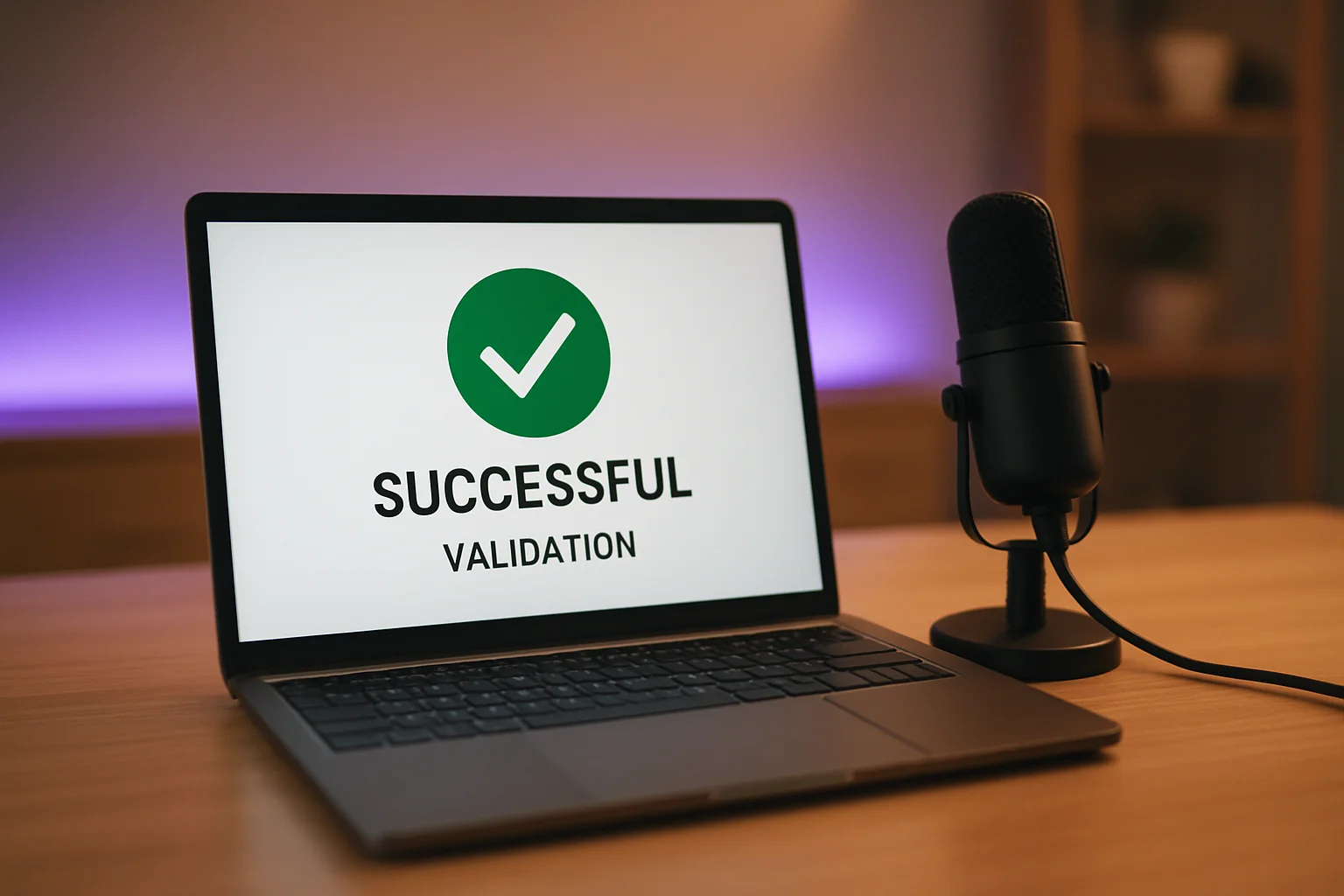
Validate your RSS feed for free with VNYL’s RSS validator. Paste your feed URL, and the tool checks:
- Required RSS 2.0 elements
- iTunes namespace tags
- Character encoding
- Date formatting
- Image specifications
- Audio enclosure URLs
The validator shows exactly what’s wrong and how to fix it. No guessing, no searching through forums for error codes.
What Validation Checks For
A thorough validation covers these areas:
Structure validation:
- XML is well-formed (no syntax errors)
- Required elements are present
- Elements are in correct locations
Content validation:
- Dates follow RFC 2822 format
- URLs are properly formed and accessible
- Character entities are correctly encoded
- Categories match Apple’s approved list
Media validation:
- Audio enclosures are accessible
- Image URLs return valid images
- File sizes are specified correctly
Apple also recommends these third-party validators for additional checking:
- Cast Feed Validator (castfeedvalidator.com)
- Podbase Podcast Validator (podba.se/validate)
- W3C Feed Validation Service (validator.w3.org/feed)
Running your feed through multiple validators catches different types of issues.
Common RSS Feed Errors and How to Fix Them
After reviewing thousands of RSS feeds, certain errors appear repeatedly. Here are the most common problems and their solutions.
Character Encoding Problems
This causes more feed failures than any other issue. Special characters in your podcast title, description, or episode content must be encoded properly.
| Character | Wrong | Correct |
|---|---|---|
| Ampersand | & | & |
| Less than | < | < |
| Greater than | > | > |
| Single quote | ' | ' |
| Double quote | " | " |
The most common mistake is using & instead of & in category names or descriptions. “Society & Culture” must be written as “Society & Culture” in XML.
Smart quotes from word processors also cause problems. Those curly quotation marks and apostrophes (' " ") need to be replaced with standard ASCII versions or proper XML entities.
Invalid or Missing Required Tags
Every podcast submission needs these elements. Missing any one causes rejection:
<title>at channel and item level<description>at channel level<itunes:explicit>set to true or false<itunes:category>from Apple’s approved list<itunes:image>with valid artwork URL<enclosure>for each episode with URL, length, and type
The <itunes:explicit> tag trips up many podcasters. Even if your show has no explicit content, you must include this tag set to “false”. Leaving it out entirely causes rejection.
Date Format Errors
RSS requires dates in RFC 2822 format. This is very specific:
Wrong: 11/21/2025
Wrong: 2025-11-21
Wrong: November 21, 2025

Correct: Fri, 21 Nov 2025 09:00:00 -0500
Correct: Fri, 21 Nov 2025 14:00:00 GMT
The format is: Day abbreviation, date, month abbreviation, year, time, and timezone. Your hosting platform should handle this automatically, but if you’re editing feeds manually or importing from other systems, date formatting often breaks.
Image Size and Format Issues
Apple Podcasts artwork requirements are strict:
| Issue | Problem | Solution |
|---|---|---|
| Too small | Under 1400x1400 pixels | Resize to at least 1400x1400 |
| Too large | Over 3000x3000 pixels | Resize to maximum 3000x3000 |
| Wrong format | GIF, BMP, or TIFF | Convert to JPEG or PNG |
| Wrong color space | CMYK | Convert to RGB |
| Non-ASCII filename | image%20name.jpg | Use simple alphanumeric names |
The image URL must also be accessible. If your image returns a 404 error or requires authentication, the feed fails validation.
URL and Connection Problems
Your hosting server must support specific HTTP features:
- HEAD requests: Directories check if files exist without downloading them
- Byte-range requests: Apps download portions of files for seeking
- SSL/HTTPS: Required for most directories now
- Consistent availability: Temporary outages cause validation failures
If you’re self-hosting, ensure your server configuration supports these features. Most podcast hosting platforms handle this automatically.
Quick Takeaway: Character encoding (especially ampersands) and missing required tags cause most RSS failures. Validate before submitting to catch these issues.
How to Migrate Your RSS Feed Without Losing Subscribers
Switching podcast hosts is stressful because a mistake means losing subscribers. But with proper RSS redirect handling, your audience follows you seamlessly to the new platform.
Using 301 Redirects
The safest migration method is a permanent HTTP redirect. When podcast apps request your old feed URL, your server responds with a 301 status code pointing to the new location.
According to the RSS Board’s redirect guide, RSS readers should automatically follow 301 redirects and update their stored URLs. This means subscribers don’t need to do anything. Their apps simply start fetching from the new location.
Your old hosting platform needs to support 301 redirects for this to work. Most established platforms offer this feature, but check before signing up with a new host.
The itunes:new-feed-url Tag
For Apple Podcasts specifically, add this tag to your new feed:
<itunes:new-feed-url>https://newhost.com/feed.xml</itunes:new-feed-url>This tells Apple Podcasts that your feed has moved. According to the Apple Podcasts migration guide, you should maintain both the 301 redirect and this tag for at least four weeks.
The combination of server-level redirect and feed-level tag ensures all podcast apps get the message, regardless of how they handle redirects.
Why GUIDs Must Never Change
This is critical: episode GUIDs must remain identical after migration. The GUID (Globally Unique Identifier) is how podcast apps track which episodes a listener has already downloaded or played.
If GUIDs change during migration:
- Listeners see duplicate episodes in their feeds
- Play progress and completion status are lost
- Analytics data becomes inconsistent
- Some apps may re-download entire back catalogs
When migrating, export your episode data including GUIDs and ensure they’re preserved in the new platform. Any hosting platform worth using supports GUID preservation during import.
Timeline for Safe Migration
Follow this timeline for smooth migration:
Week 1: Set up new hosting platform, import all episodes with preserved GUIDs, verify new feed validates correctly
Week 2: Configure 301 redirect on old platform, add itunes:new-feed-url tag, submit change to Apple Podcasts if required
Weeks 3-6: Monitor both platforms, check that downloads shift to new host, watch for any subscriber complaints
After Week 6: Safe to fully disconnect from old platform (but keep redirect active if possible)
Rushing migration causes problems. The four-week minimum gives all podcast apps time to update their cached feed URLs.
Quick Takeaway: Use 301 redirects plus the itunes:new-feed-url tag. Never change GUIDs. Allow at least four weeks for apps to update.
Advanced RSS Customization Options
Beyond the basic required tags, modern RSS feeds support additional features that improve listener experience and discoverability.
Season and Episode Numbers
Organizing your podcast into seasons helps listeners navigate your back catalog:
<itunes:season>2</itunes:season>
<itunes:episode>5</itunes:episode>
<itunes:episodeType>full</itunes:episodeType>
The episodeType can be “full” (standard episode), “trailer” (preview), or “bonus” (supplementary content). Apple Podcasts and Spotify display these differently in their apps.
Transcript Inclusion
The Podcast Namespace project introduced the transcript tag for accessibility and SEO:
<podcast:transcript url="https://yourhost.com/ep1-transcript.srt" type="application/srt"/>Transcripts improve accessibility for deaf and hard-of-hearing listeners. They also provide text for search engines to index, potentially improving discoverability. Supported formats include SRT, VTT, and plain text.
Dynamic Ad Insertion Compatibility
If you monetize through dynamic ad insertion (DAI), your RSS feed needs to work with ad servers. This typically means:
- Clean audio files without baked-in ads
- Proper chapter markers if using mid-roll insertion
- Consistent episode durations in metadata
- Support for VAST/VMAP ad specifications
Most DAI happens at the hosting platform level, but understanding how it interacts with your RSS feed helps when troubleshooting ad delivery issues.
The Podcast Namespace (New Tags for 2025)
The podcast namespace extends RSS with modern features:
| Tag | Purpose |
|---|---|
<podcast:transcript> | Link to episode transcript |
<podcast:funding> | Donation/support links |
<podcast:chapters> | Chapter markers file |
<podcast:locked> | Prevent unauthorized imports |
<podcast:guid> | Universal podcast identifier |
These tags require declaring the podcast namespace:
<rss version="2.0"
  xmlns:itunes="http://www.itunes.com/dtds/podcast-1.0.dtd"
  xmlns:podcast="https://podcastindex.org/namespace/1.0">
Not all podcast apps support these tags yet, but adoption is growing. Adding them now future-proofs your feed.
VNYL’s RSS Features
When we built VNYL, RSS handling was a priority. Your feed is your podcast’s foundation, and it should work flawlessly without requiring you to think about XML.
Automatic generation with full customization: VNYL generates a valid, compliant RSS feed the moment you create your podcast. All required tags are handled automatically. But if you need to add custom tags, edit specific elements, or include podcast namespace extensions, you have full access.
Built-in RSS validator: Before you submit to directories, validate your feed directly in the dashboard. The same validation that powers our free RSS validator tool is integrated into your workflow.
Migration-friendly architecture: Importing from another platform? VNYL preserves your episode GUIDs, publication dates, and metadata. We provide 301 redirect setup guides for every major platform you might be leaving.
Clean, compliant feeds by default: No worrying about character encoding, date formatting, or missing tags. Every VNYL feed passes Apple Podcasts and Spotify validation out of the box.
(This is exactly why we built validation into the core platform. Chasing down RSS errors after directory rejection is time you should spend creating content.)
Your RSS Feed Is Your Podcast’s Foundation
RSS might seem like technical plumbing, but it’s the infrastructure that makes podcast distribution work. A valid feed means your show reaches listeners on Apple Podcasts, Spotify, and every other directory. An invalid feed means rejection, delays, and frustrated troubleshooting.
The key points to remember:
Validate before you submit. Five minutes with a validation tool prevents days of rejection cycles. Check your RSS feed for free before submitting to any directory.
Understand required tags. Apple Podcasts and Spotify expect specific iTunes namespace tags. Missing <itunes:explicit> or <itunes:category> gets you rejected every time.
Watch character encoding. Ampersands, quotes, and special characters need proper XML encoding. This catches more podcasters than any other issue.
Never change GUIDs. Episode identifiers must remain constant forever. Changing them creates duplicate episodes and breaks subscriber tracking.
Plan migrations carefully. 301 redirects plus the new-feed-url tag, maintained for at least four weeks. Rushing causes subscriber loss.
Your RSS feed is the one piece of your podcast that truly belongs to you. Understand it, maintain it, and it serves you well across any platform or directory.
Want more podcasting tips like these? Join our newsletter at vnyl.fm for weekly insights.